Training Sessions

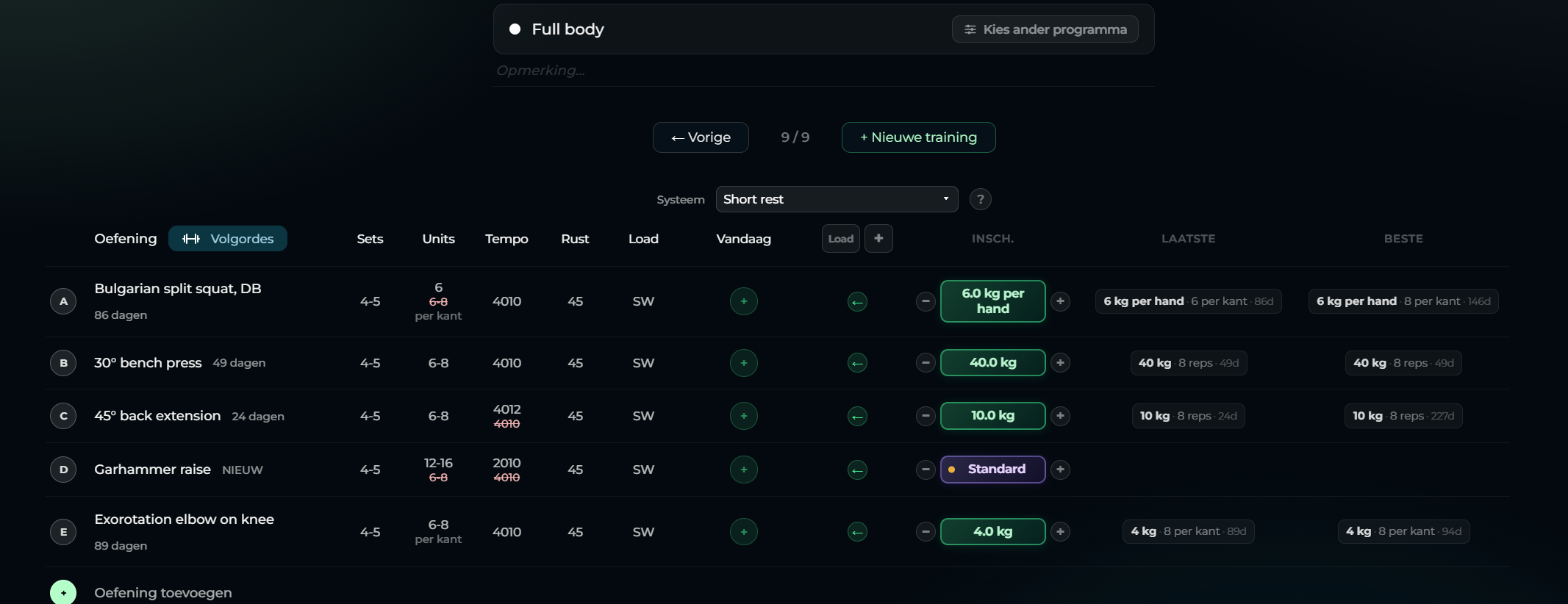
A training session is a single workout day within a program. It contains an ordered list of exercises with sets, reps, tempo, and rest targets — generated automatically and fully editable by the coach.

Session Overview

Sessions are numbered within a program (Week 1 / Session 1, etc.) and are accessed either through the program view or from the athlete's Next Training shortcut on their profile.

Each session shows a summary of the training type, total exercises, estimated duration, and any active injury flags that affected the session (exercises excluded or load-modified).

Session Editor

The session editor uses a drag-and-drop interface. Exercises can be reordered by grabbing the drag handle on the left of each row. The order affects how exercises are performed in sequence — and is respected during the logging flow.

Each exercise row in the editor displays:

Edit Sidebar

Clicking any exercise row opens the edit sidebar panel. From here you can adjust all exercise parameters without leaving the session view:

All changes in the edit sidebar save automatically as you type.

Injury Indicators in Sessions

Exercises flagged by the injury system are visually marked in the session editor and logging view:

IndicatorMeaning
Red borderExercise would normally be excluded due to a red flag, but was manually added back by a coach
Yellow warningExercise is included but load has been automatically reduced due to a yellow flag
No indicatorNo active flags affect this exercise

Starting a Session

From the athlete profile, click Next Training to open the session start flow. This view shows upcoming sessions in chronological order and displays a summary before you begin.

Clicking Start Session enters the live logging mode. From this point, the athlete's body weight can be re-entered if it has changed since the last session.

Live Session Logging

During a live session, exercises are displayed one at a time in order. Each exercise shows the target sets and reps, with input fields per set for:

Completed sets are checked off as you go. Partially completed sets (fewer reps than target) are recorded as-is and factored into the progression calculation.

💡
Difficulty ratings drive the next session

The perceived difficulty (RPE) is the most important number you log. It feeds directly into the generation engine to calibrate load for the next session. A rating of 6–7 triggers progressive overload; 8–9 holds load; 10 reduces load next session.

Gym Day Planner

The Gym Day Planner gives coaches a complete view of everyone training on a given day. Access it from the sidebar navigation.

The planner shows:

Completing a Session

A session is marked as completed when all exercises have been logged. The completion status appears in the program timeline and triggers the load recalibration for the next generated session.

Partially completed sessions (some exercises logged, some skipped) are also stored. Skipped exercises do not contribute to the load recalibration but are noted in the session history.

⚠️
Session completion and generation

If you run a new generation on a session that has already been partially logged, the logged results are preserved but the unlogged exercises will be replaced. A confirmation prompt appears before any generation that affects logged data.